Analytic API Events
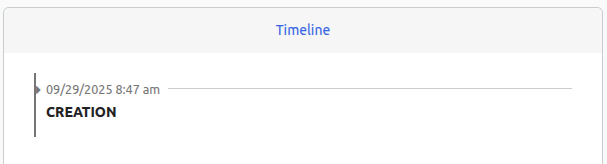
CREATION
This event corresponds to the opening of a client file, it corresponds to the creation of a file via API.
Below is the event that appears in the timeline:
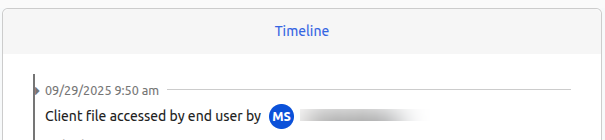
CLIENT_FILE_ACCESSED
This event is triggered when the user clicks on the link in the invitation email to access their SignBook journey.
Below is the event that appears in the timeline:
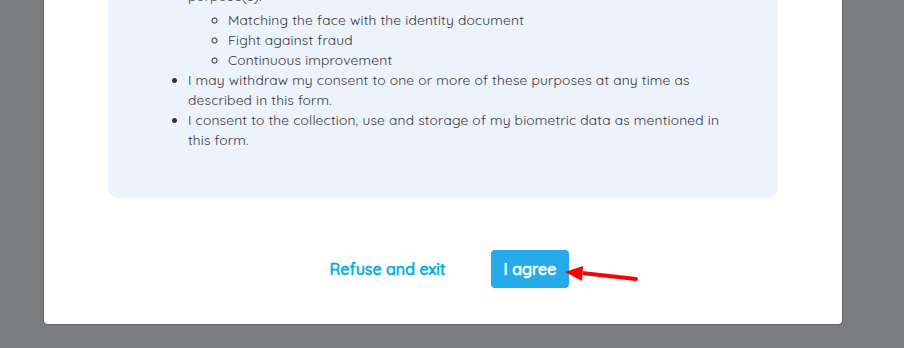
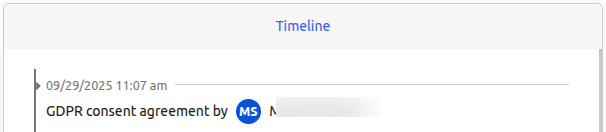
GDPR_ACCEPTATION
When the user has accepted the GDPR consents from the SignBook page
Below is the event that appears in the timeline:
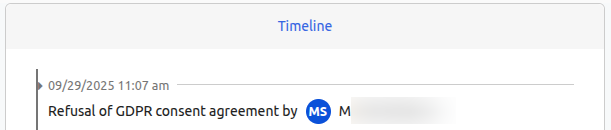
GDPR_REFUSAL
When the user has refused the GDPR consents from the SignBook page
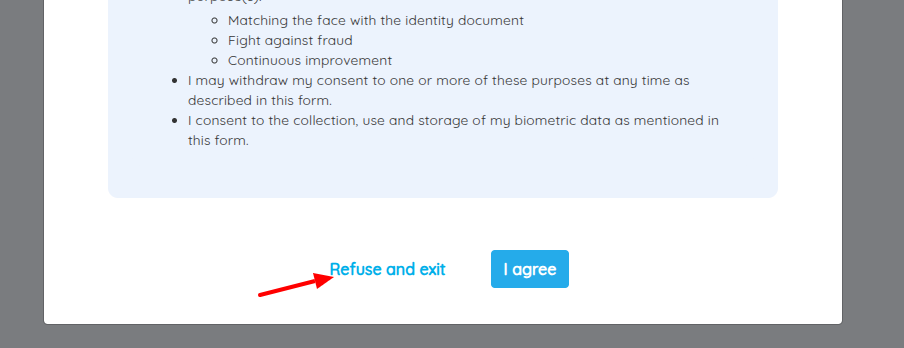
Below is the event that appears in the timeline:
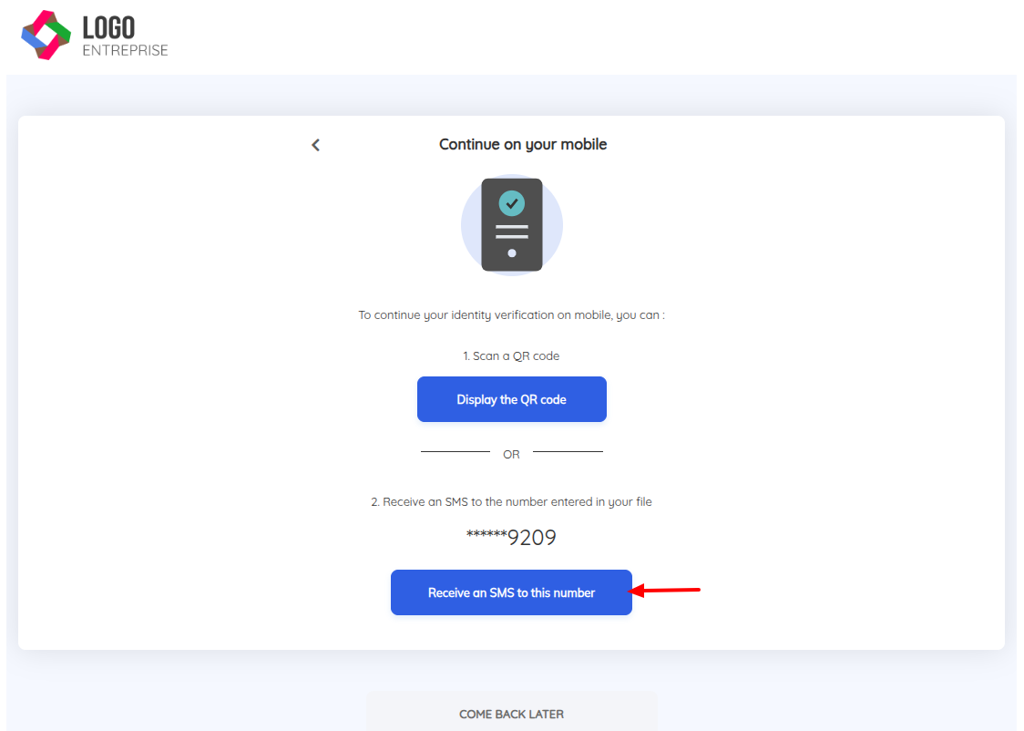
SIGNBOOK_URL_SMS_SENT
This event is triggered when the user requests to send the link of their identity verification journey from desktop to mobile via SMS, the shortened link will only be sent once.
The participant's mobile phone number must be provided for the event to be triggered.
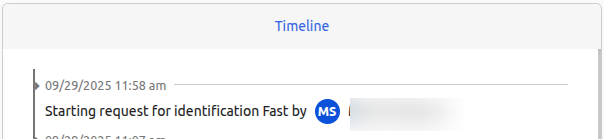
VIDEO_IDENTIFICATION_REQUESTED
When a user makes a request to start their video identity verification journey
mobile case
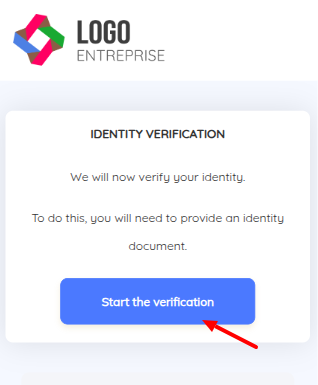
desktop case
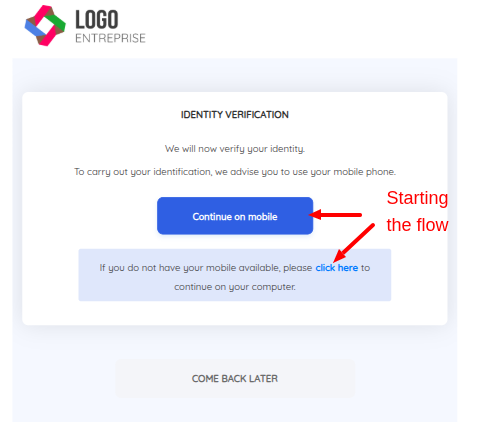
Below is the event that appears in the timeline:
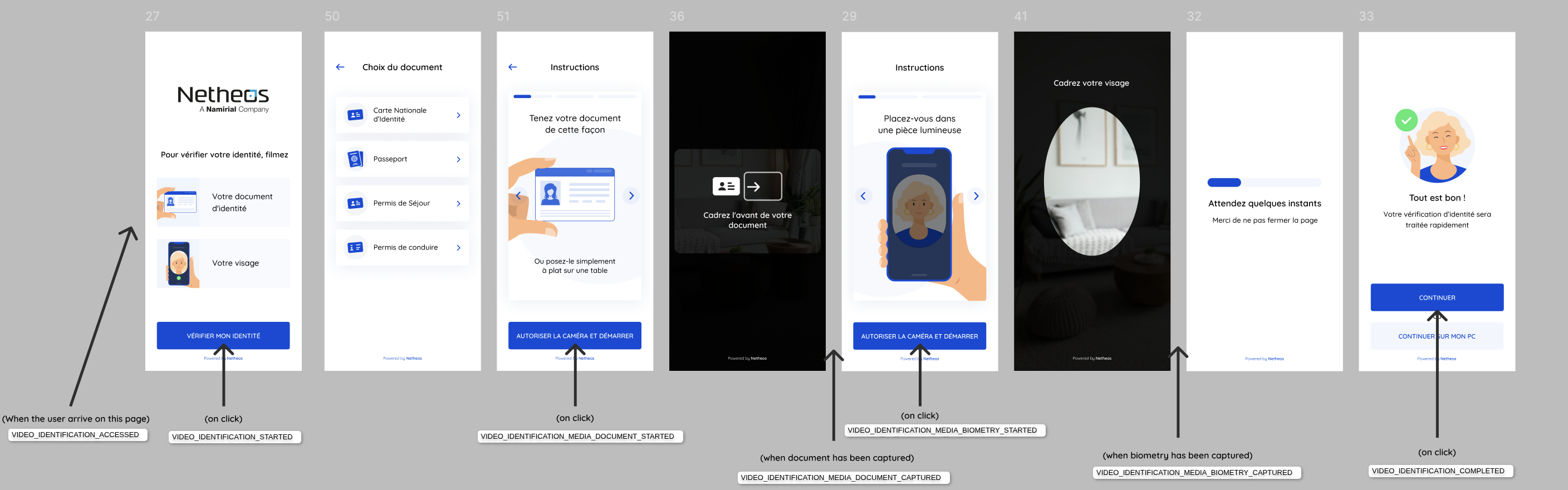
VIDEO IDENTIFICATION EVENTS
The identity verification journey includes several events, illustrated below:
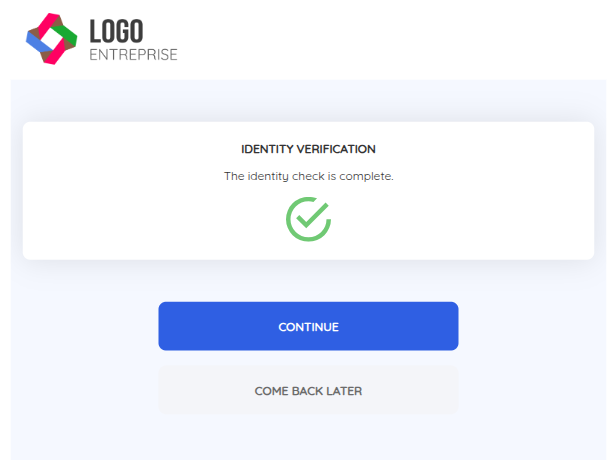
VIDEO_IDENTIFICATION_PROCESSED
This event is triggered after receiving the response from Prevent containing the results of the automatic checks performed on the identity document.
Here is an example when all checks are successful:
And here is an example when the checks have failed, and therefore the LiveCheck request is in progress:
The event appears in the Center interface as illustrated below in case of successful checks:

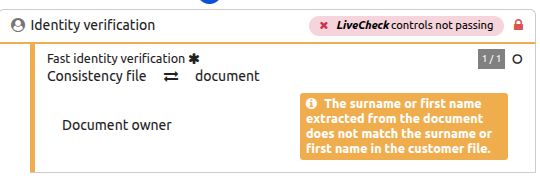
And in case of failed checks:

OPERATOR_REVIEW_REQUESTED
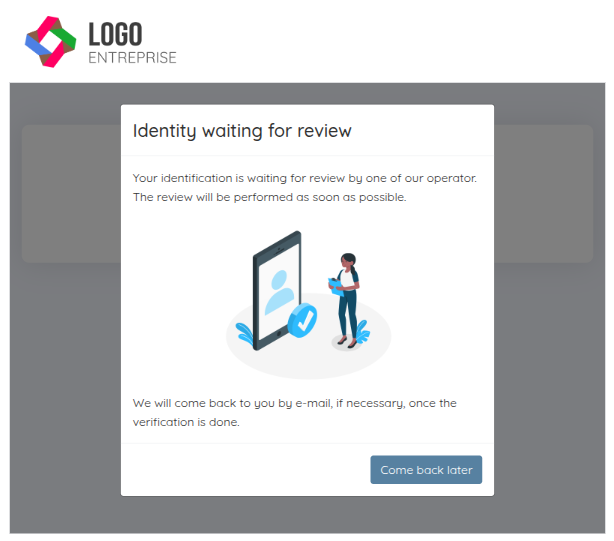
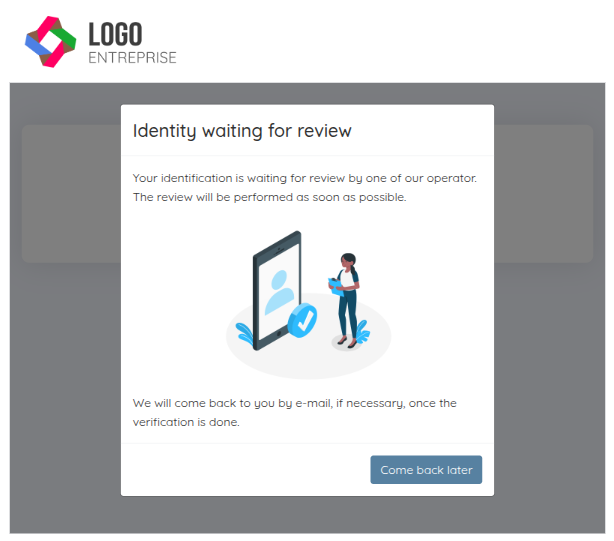
In the case of a LiveCheck request is running, the user will see this message in their SignBook journey
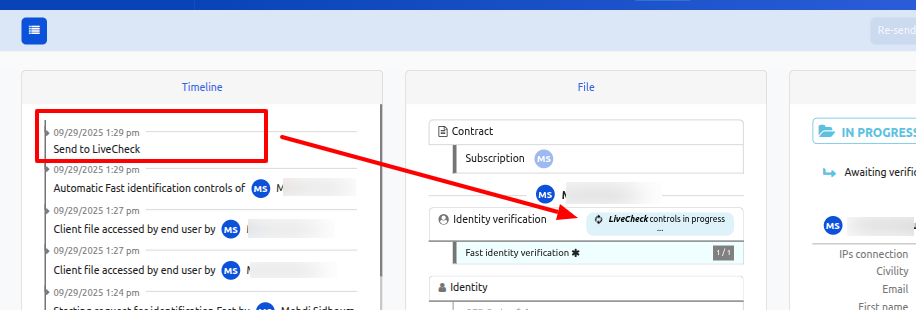
In the back office, in the Center interface, the event is displayed in the timeline, and the status of the LiveCheck checks is in progress
OPERATOR_REVIEW_END
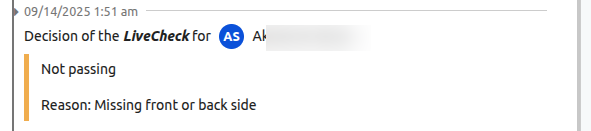
Once the LiveCheck operator has analyzed the identity document, they deliver their verdict. This event certifies the receipt of the operator's verdict. The verdict can be either positive or negative, with a reason for rejection if applicable.
Here is an example of an event with a positive verdict:


And here is an example of an event with a negative verdict:
NAMIRIAL_CONSENT_VIEWED
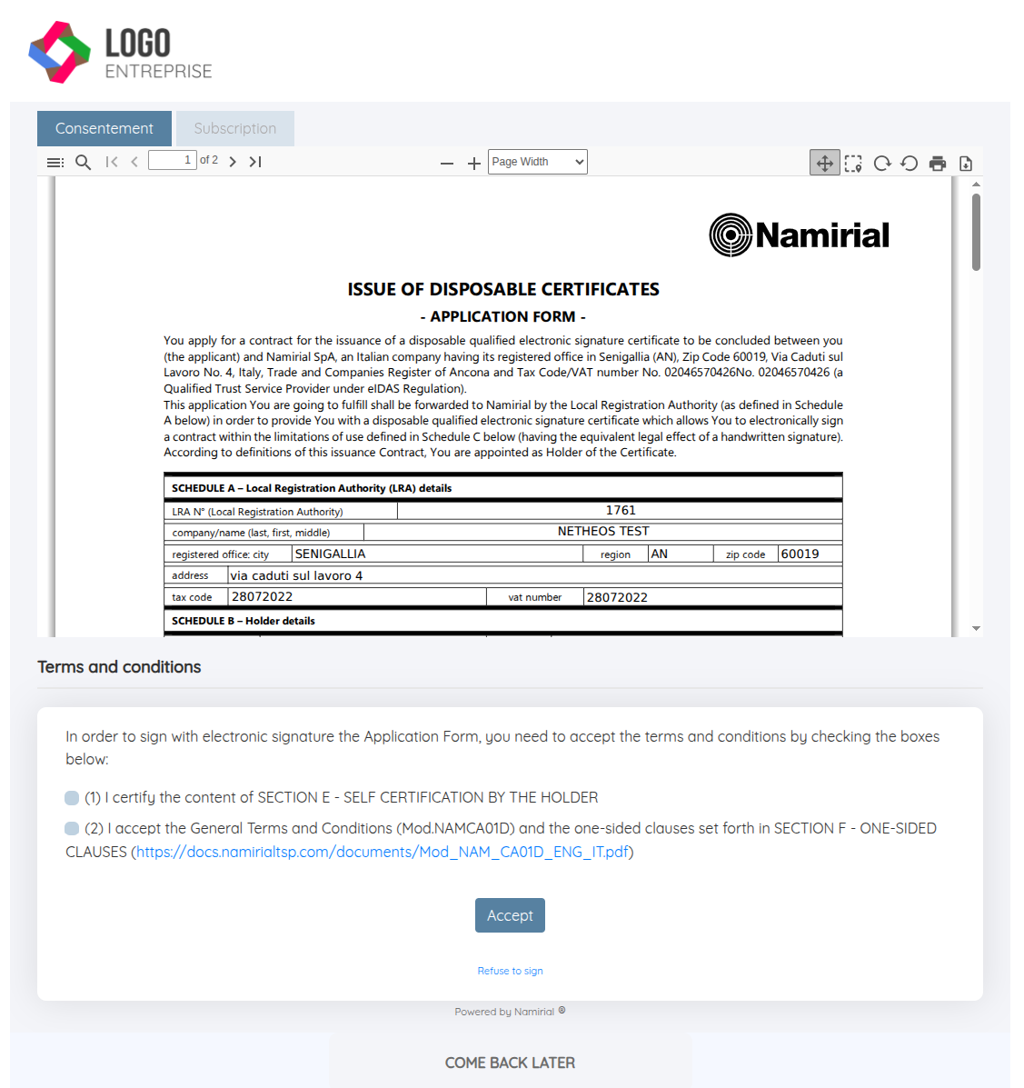
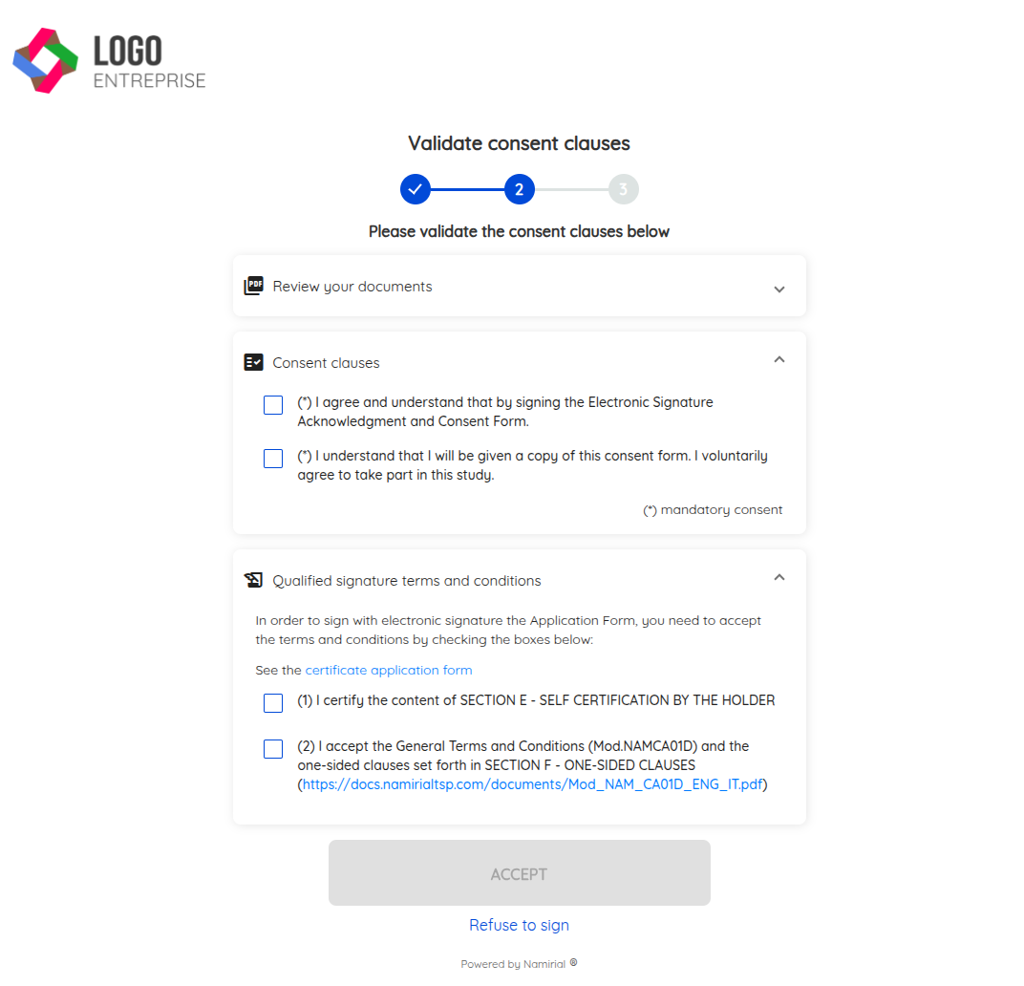
This event occurs when the user reaches the consent page of the qualified signature certificate. This certificate is issued by the Namirial CA and contains mandatory clauses that the user must accept before proceeding to the signature step.
The consent page (classic view):
The consent page (modern view):
The event appears in the Center interface as illustrated below:

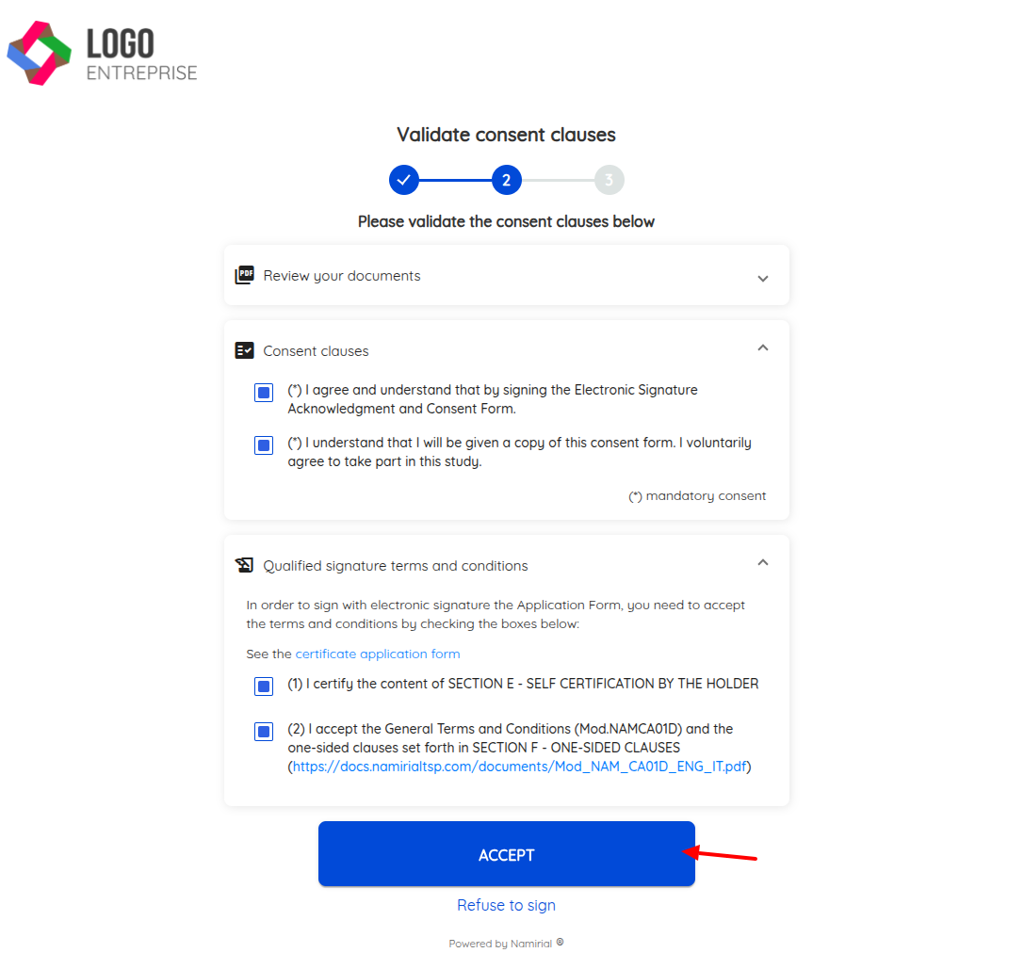
QES_CONSENT_ACCEPTATION
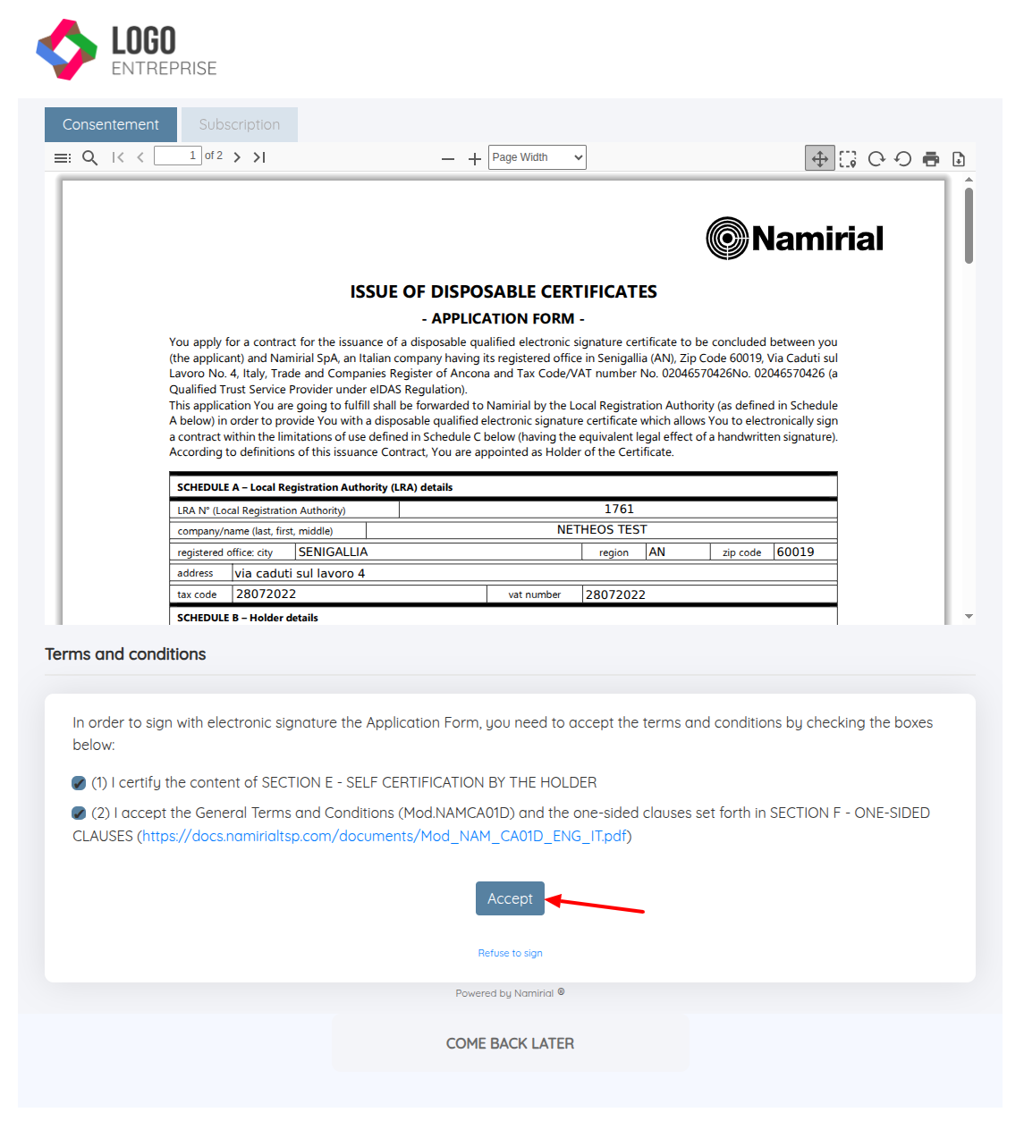
Triggered when the user has accepted the CA's terms and conditions for issuing the qualified signature certificate.
Occurs when the user has clicked the button to accept.
In the signature interface (classic view):
In the signature interface (modern view):
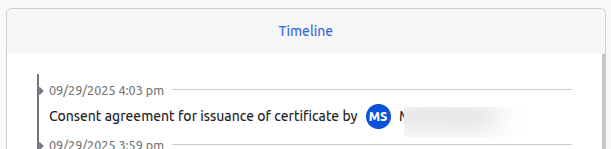
The event appears in the Center interface as shown below:
CONTRACT_VIEWED
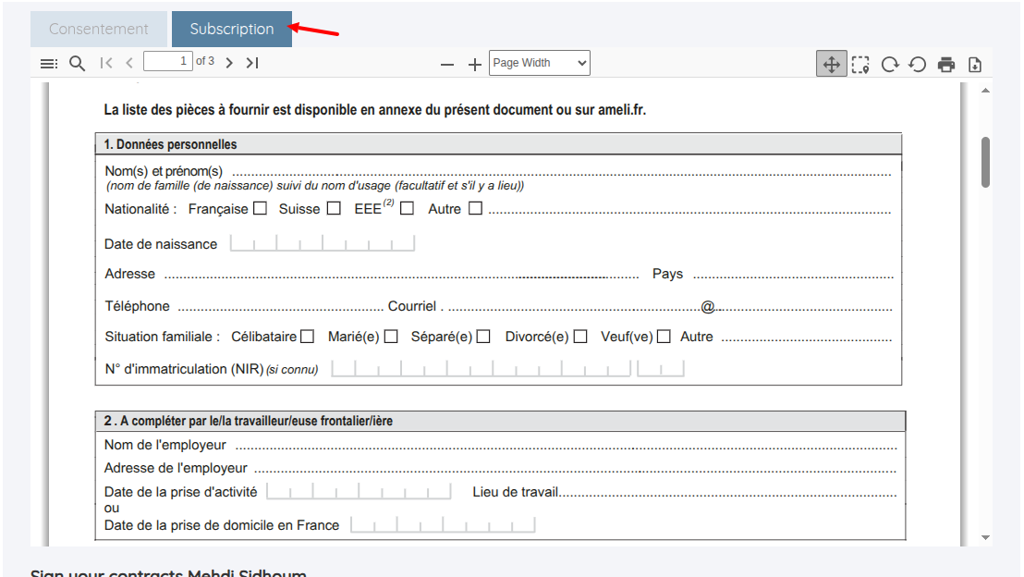
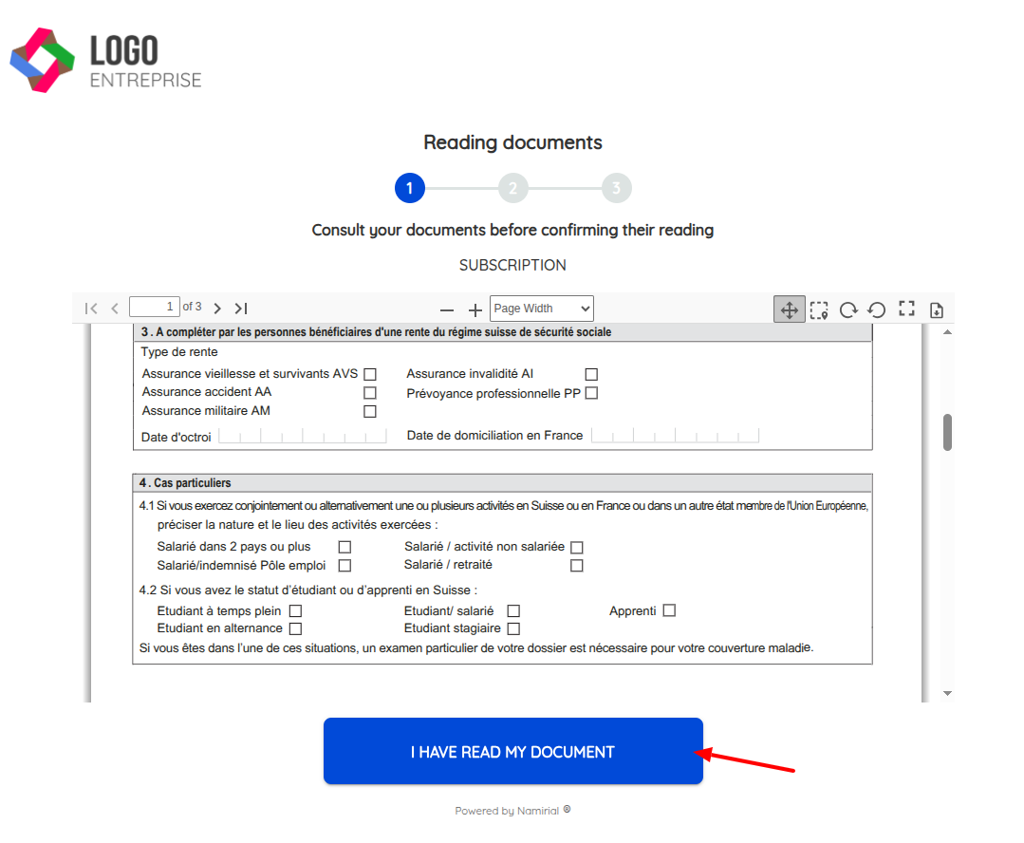
This event is triggered to indicate that the participant has viewed a contractual document.
In the classic interface, this corresponds to the screen where the contract is displayed or when the participant clicks on the tabs if there are multiple contractual documents, see below:
In the modern view, the event is triggered when the user click on the button “I have read my document“ like below:
The event appears in the Center interface as shown below:

OTP_REQUESTED
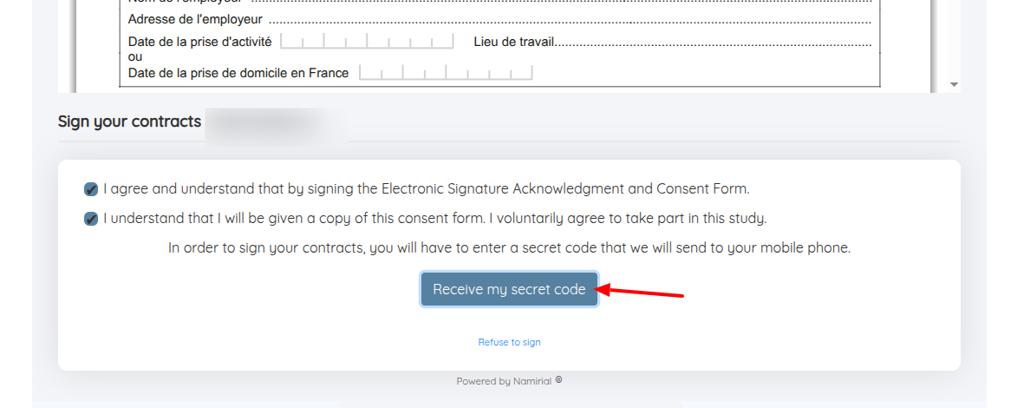
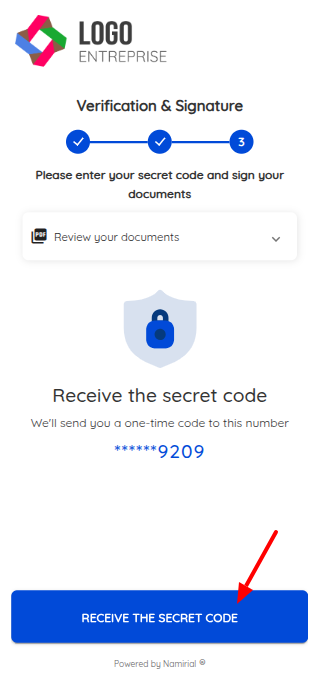
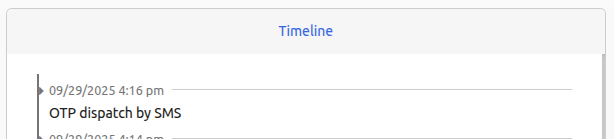
This event is triggered when a participant has requested to receive their OTP code to sign.
Below the classic view of signature:
Below the modern view of signature:
The event appears in the Center interface as shown below:
SIGNATURE
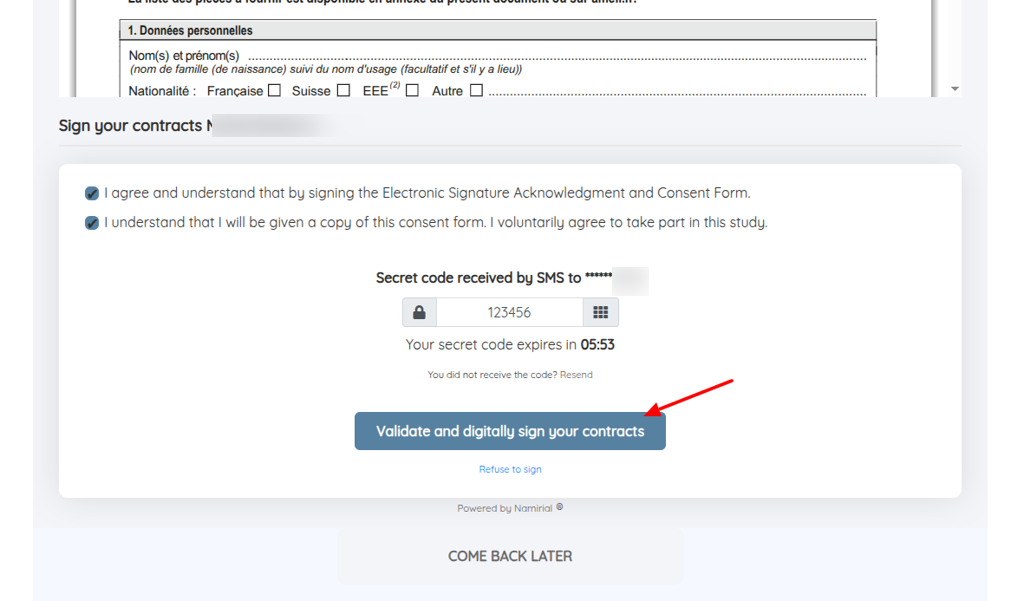
This event indicates that the participant has successfully signed, triggering the end of the journey if no action has been defined after this step.
View from the classic signature page:
View from the new signature page:
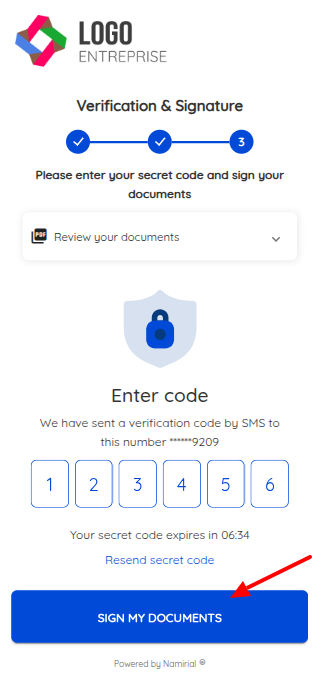
Below the event that appears in the timeline:

DOCUMENT_SUBMISSION
This event indicates that a document has been submitted to the client file.
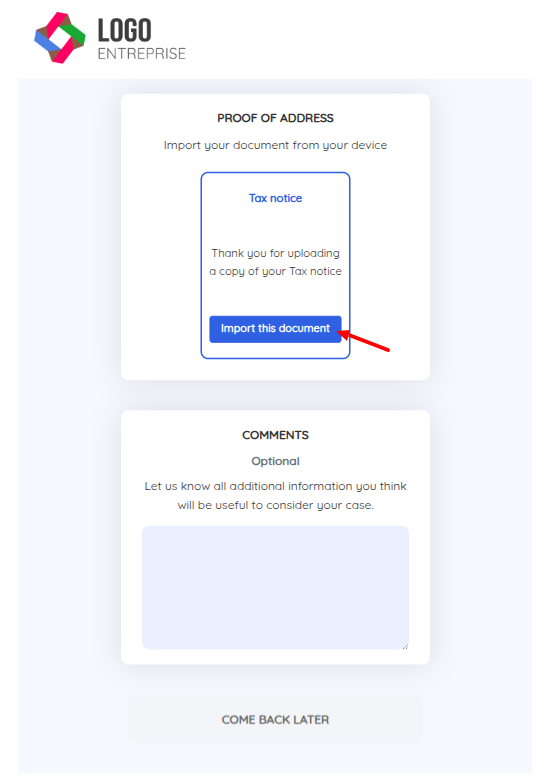
Below is the page for supporting documents to be submitted in the SignBook; first, the user clicks to import their file
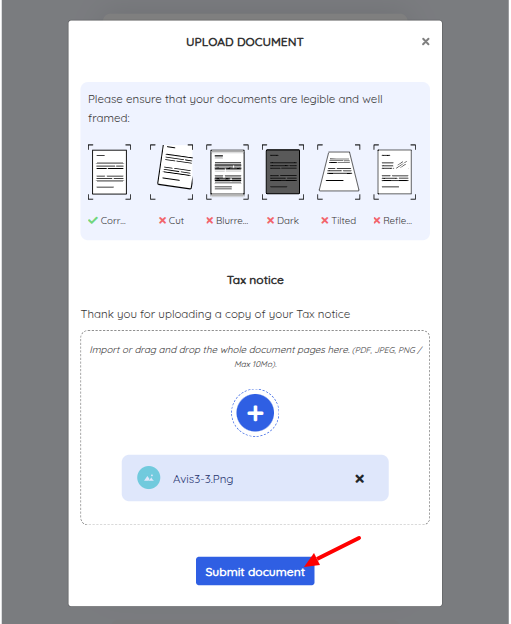
He then chooses to send the selected file(s) by clicking on the “submit document” button
In the back office Center view, the folder elements are displayed in the middle column
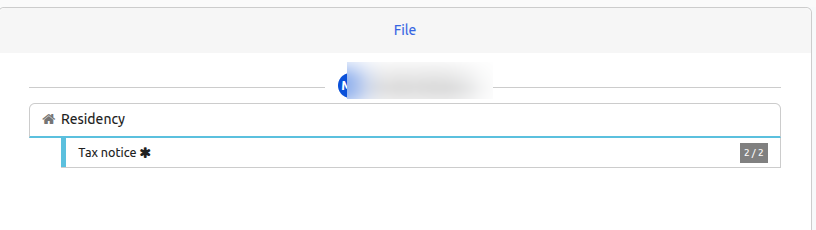
Below is the event that appears in the timeline:

UPDATE
This event allows tracking data modifications, for example, participant information. This can be done either via API v6 or through the Center interface.
Below is the event that appears in the timeline:

PARTICIPANT_COMPLETION
This event marks the end of a given participant's journey, and it's the next participant's turn to come and complete their journey.
Below is the event that appears in the timeline:

UNBLOCKING
This event indicates that the client file has been unblocked following a suspension configured in the workflow, for example when a document has errors from auto Prevent controls, and a suspension has been configured in the workflow in case of errors, then the file is suspended to allow an operator or API to intervene and unblock the client file.
From the Center interface, you need to click on the “Unblock” button as shown in the screenshot below:
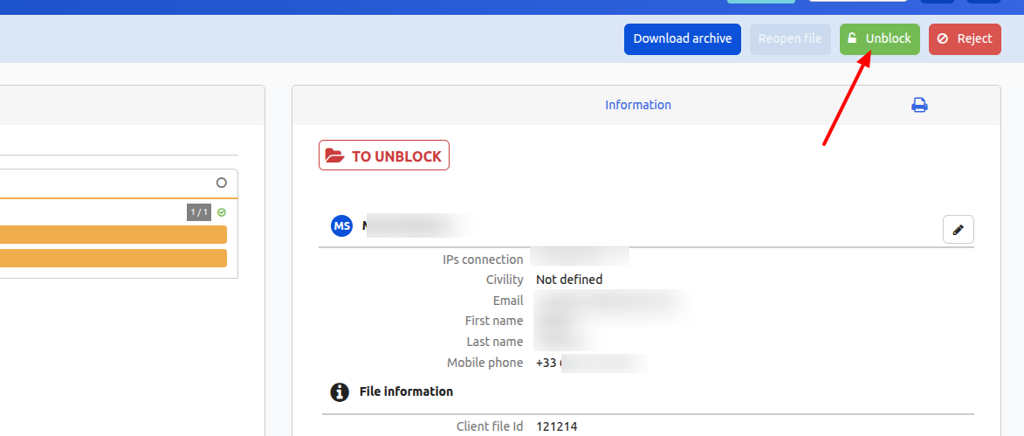
Below is the event that appears in the timeline:

REOPEN
This event indicates that a client file has been reopened to ask participants to resubmit or re-sign documents, usually following a file unblocking because control errors were detected on the submitted documents.
There are two ways to achieve this, - by API - by using the UI back office
Below, a client file can be reopened from the Center interface by clicking the “Reopen file” button
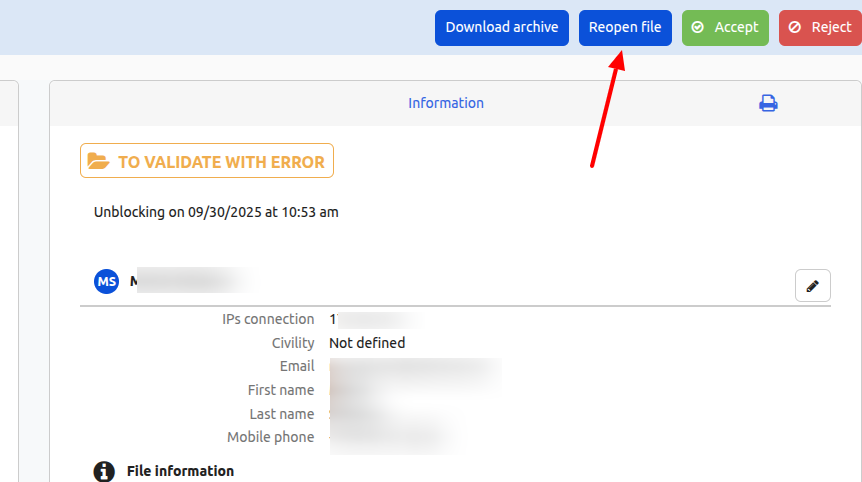
Below is the event that appears in the timeline:

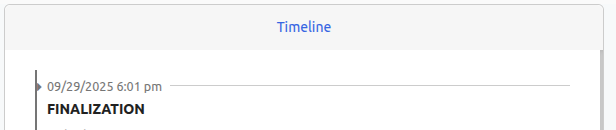
FINALIZATION
This event indicates that all participants have completed their journeys; it marks the end of user actions, and the client file is now in the client's hands for validation.
Below is the event that appears in the timeline:
ACCEPTATION
This event indicates that a client file has been accepted; it can be accepted in several ways
Either automatically if configured in the journey and no errors have been detected on the submitted documents Or by API Either through the back-office Center interface by clicking the “Accept“ button as shown below
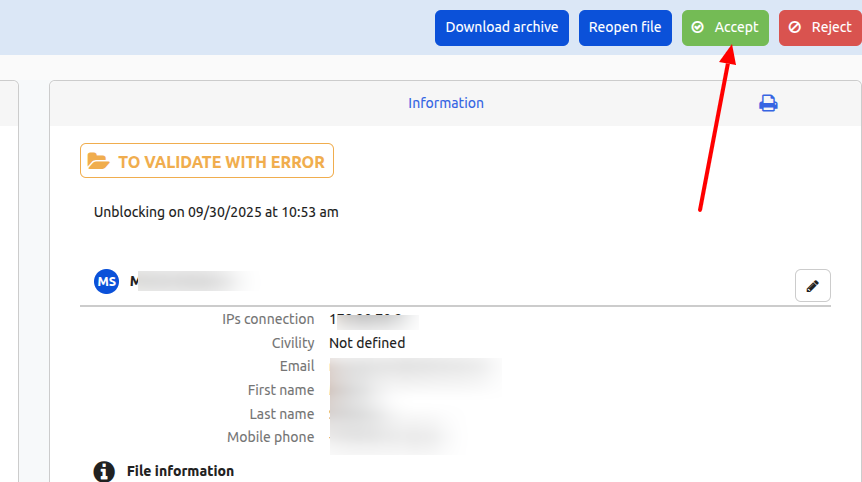
Below is the event that appears in the timeline:

REJECTION
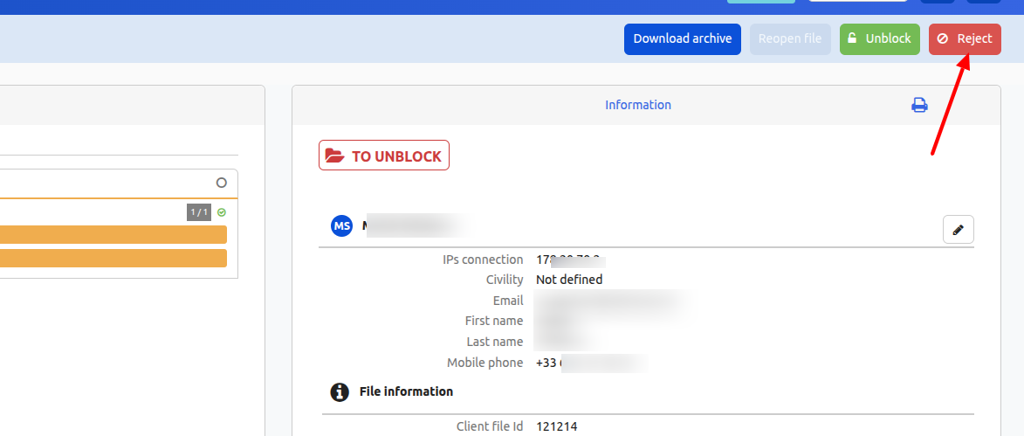
This event indicates that a client file has been rejected; the file can be rejected in different ways - Automatically configured in the workflow in case of errors from Prevent automatic controls - Automatically due to a signature error, for example, too many OTP code attempts or an expired signing session. - Manually by the user from the SignBook if they refuse to sign - By API - Either through the back-office Center interface by clicking the “Reject“ button as shown below
Below is the event that appears in the timeline:

ARCHIVING
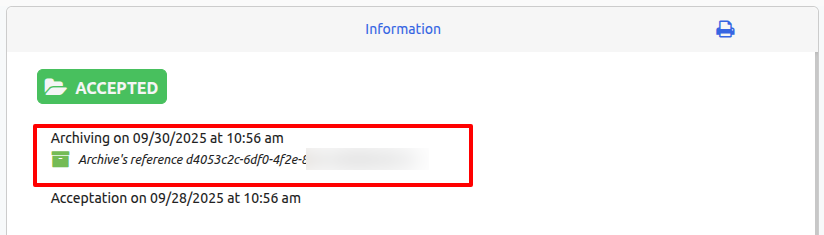
This event is automatically added when the system successfully archives the accepted client file in the vault.
Below is the archiving information displayed in Center
Below is the event that appears in the timeline:
